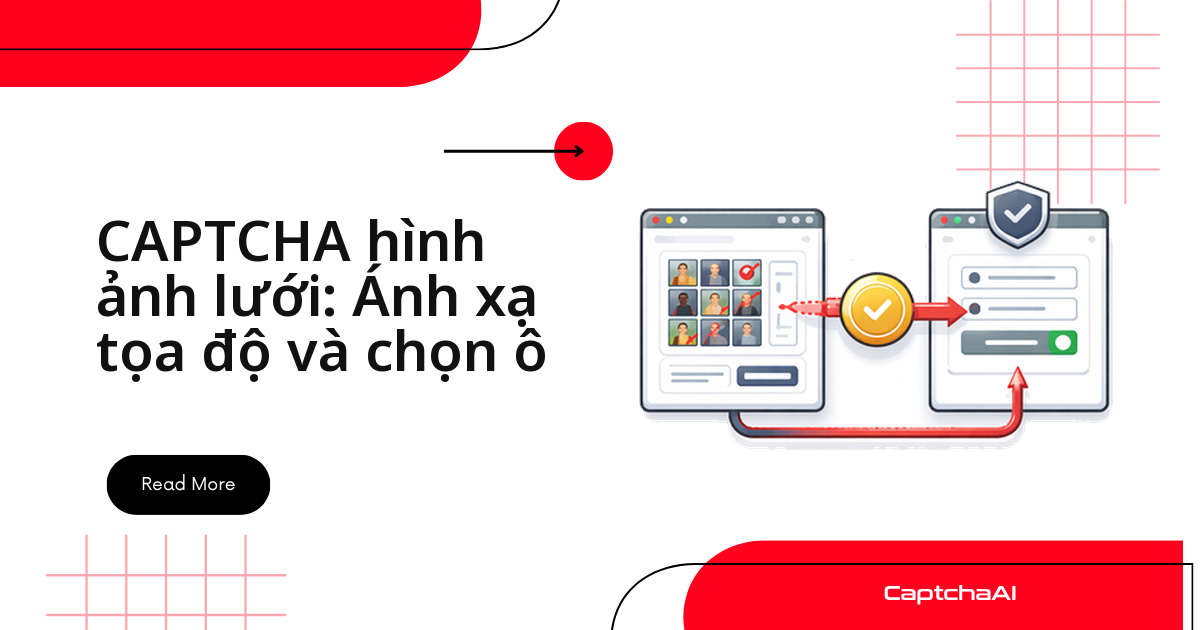
Với CAPTCHA hình ảnh lưới, CaptchaAI làm phần khó nhất: nhận ảnh lưới cùng câu hướng dẫn và trả về danh sách chỉ số ô cần nhấp (ví dụ [1, 3, 6, 9]). Việc của bạn là chụp đúng lưới, ánh xạ mỗi chỉ số sang tọa độ pixel rồi click vào tâm ô. Đây là dạng thử thách hình ảnh quen thuộc của reCAPTCHA v2, và luồng xử lý dưới đây chạy được cho cả lưới 3×3 lẫn 4×4.
Bốn bước bạn sẽ dựng trong bài:
- Chụp ảnh lưới và đọc câu hướng dẫn từ iframe.
- Gửi ảnh tới CaptchaAI rồi nhận về mảng chỉ số ô.
- Ánh xạ mỗi chỉ số sang tọa độ pixel trong lưới.
- Click đúng các ô đó và bấm nút xác minh.
Bố cục và cách đánh số ô
CAPTCHA lưới chỉ có hai kích thước tiêu chuẩn:
3×3 Grid:          4×4 Grid:
1  2  3            1   2   3   4
4  5  6            5   6   7   8
7  8  9            9  10  11  12
                   13  14  15  16
Cách đánh số quyết định toàn bộ phần ánh xạ tọa độ về sau, nên nắm chắc ba điểm này:
- Ô được đánh số từ trái sang phải, từ trên xuống dưới — đúng thứ tự đọc.
- Chỉ số là 1-based (bắt đầu từ 1), nên khi tính hàng và cột luôn phải trừ đi 1.
- Lưới 3×3 dùng chỉ số 1–9, lưới 4×4 dùng chỉ số 1–16.
Bước 1: chụp ảnh lưới và đọc hướng dẫn
Chuyển context vào iframe thử thách của reCAPTCHA, chụp riêng ảnh lưới thành base64 và đọc câu hướng dẫn — thứ quyết định từ khóa gửi cho CaptchaAI. Đồng thời xác định lưới là 3×3 hay 4×4 qua class của ảnh.
Python (Selenium)
import base64
from selenium import webdriver
from selenium.webdriver.common.by import By
from selenium.webdriver.support.ui import WebDriverWait
from selenium.webdriver.support import expected_conditions as EC

driver = webdriver.Chrome()
driver.get("https://example.com/form")

# Wait for reCAPTCHA iframe
WebDriverWait(driver, 10).until(
    EC.presence_of_element_located((By.CSS_SELECTOR, "iframe[src*='recaptcha']"))
)

# Switch to challenge iframe
iframes = driver.find_elements(By.CSS_SELECTOR, "iframe[src*='recaptcha']")
challenge_iframe = iframes[-1]  # Challenge iframe is typically the last one
driver.switch_to.frame(challenge_iframe)

# Get the grid image
grid_img = driver.find_element(By.CSS_SELECTOR, "img.rc-image-tile-33, img.rc-image-tile-44")
img_src = grid_img.get_attribute("src")

# Get instruction text
instruction = driver.find_element(
    By.CSS_SELECTOR, ".rc-imageselect-desc-wrapper"
).text
print(f"Instruction: {instruction}")

# Screenshot the grid as base64
img_b64 = grid_img.screenshot_as_base64

# Determine grid size
classes = grid_img.get_attribute("class")
grid_size = "4x4" if "44" in classes else "3x3"
print(f"Grid size: {grid_size}")

driver.switch_to.default_content()
JavaScript (Puppeteer)
Bản Puppeteer làm đúng những việc trên: tìm frame thử thách, lấy câu hướng dẫn, chụp ảnh lưới và suy ra kích thước từ class.
const puppeteer = require('puppeteer');
const fs = require('fs');

const browser = await puppeteer.launch({ headless: false });
const page = await browser.newPage();
await page.goto('https://example.com/form');

// Find the challenge iframe
const frames = page.frames();
const challengeFrame = frames.find(f => f.url().includes('recaptcha'));

// Get instruction
const instruction = await challengeFrame.$eval(
  '.rc-imageselect-desc-wrapper',
  el => el.textContent.trim()
);

// Screenshot the grid image
const gridImg = await challengeFrame.$('img.rc-image-tile-33, img.rc-image-tile-44');
const imgBuffer = await gridImg.screenshot();
const imgBase64 = imgBuffer.toString('base64');

// Determine grid size
const className = await challengeFrame.$eval(
  'img.rc-image-tile-33, img.rc-image-tile-44',
  el => el.className
);
const gridSize = className.includes('44') ? '4x4' : '3x3';
console.log(`Grid: ${gridSize}, Instruction: ${instruction}`);
Bước 2: gửi ảnh lưới tới CaptchaAI
Rút gọn câu hướng dẫn thành một từ khóa (ví dụ "traffic lights"), gửi ảnh tới in.php kèm grid_size và img_type=recaptcha, rồi polling res.php cho tới khi có kết quả. CaptchaAI trả về mảng chỉ số ô dưới dạng JSON.
import requests
import time
import json

API_KEY = "YOUR_API_KEY"

# Parse the instruction to a simple keyword
# "Select all images with traffic lights" → "traffic lights"
import re
keyword_match = re.search(r'(?:with|of|containing)\s+(.+?)\.?$', instruction, re.I)
keyword = keyword_match.group(1) if keyword_match else instruction

# Submit
with open("/tmp/grid.png", "wb") as f:
    f.write(base64.b64decode(img_b64))

with open("/tmp/grid.png", "rb") as f:
    resp = requests.post("https://ocr.captchaai.com/in.php",
        files={"file": f},
        data={
            "key": API_KEY,
            "method": "post",
            "grid_size": grid_size,
            "img_type": "recaptcha",
            "instructions": keyword,
            "json": "1",
        }
    ).json()

if resp["status"] != 1:
    raise Exception(f"Submit error: {resp['request']}")

task_id = resp["request"]

# Poll
for _ in range(20):
    time.sleep(5)
    result = requests.get("https://ocr.captchaai.com/res.php", params={
        "key": API_KEY, "action": "get", "id": task_id, "json": "1"
    }).json()

    if result["status"] == 1:
        cells = json.loads(result["request"])
        print(f"Cells to click: {cells}")  # e.g., [1, 3, 6, 9]
        break
    if result["request"] != "CAPCHA_NOT_READY":
        raise Exception(f"Error: {result['request']}")
Biến cells chính là danh sách ô cần click, ví dụ [1, 3, 6, 9].
Bước 3: ánh xạ chỉ số ô sang tọa độ pixel
Bây giờ đổi mỗi chỉ số 1-based thành tọa độ tâm ô. Công thức chỉ cần chiều rộng/chiều cao lưới cùng số hàng, cột:
def cell_to_coordinates(cell_index, grid_size, grid_width, grid_height):
    """Convert a 1-based cell index to (x, y) center coordinates."""
    if grid_size == "3x3":
        cols, rows = 3, 3
    else:
        cols, rows = 4, 4

    cell_w = grid_width / cols
    cell_h = grid_height / rows

    # Convert 1-based index to 0-based row/col
    idx = cell_index - 1
    col = idx % cols
    row = idx // cols

    # Center of the cell
    x = col * cell_w + cell_w / 2
    y = row * cell_h + cell_h / 2

    return int(x), int(y)

# Example: grid is 300×300
for cell in cells:
    x, y = cell_to_coordinates(cell, grid_size, 300, 300)
    print(f"Cell {cell} → ({x}, {y})")
Đầu ra cho lưới 3×3 (300×300):
Cell 1 → (50, 50)
Cell 3 → (250, 50)
Cell 6 → (250, 150)
Cell 9 → (250, 250)
Bước 4: click đúng ô và bấm xác minh
Có tọa độ rồi, di chuột tới từng ô so với góc trên-trái của phần tử lưới rồi click; cuối cùng bấm nút xác minh.
Selenium
from selenium.webdriver.common.action_chains import ActionChains

driver.switch_to.frame(challenge_iframe)

# Get grid element position and size
grid_el = driver.find_element(By.CSS_SELECTOR, ".rc-imageselect-target")
grid_rect = grid_el.rect
grid_w = grid_rect["width"]
grid_h = grid_rect["height"]

actions = ActionChains(driver)

for cell in cells:
    x, y = cell_to_coordinates(cell, grid_size, grid_w, grid_h)
    # Click relative to grid element's top-left corner
    actions.move_to_element_with_offset(
        grid_el,
        x - grid_w / 2,  # offset from center
        y - grid_h / 2
    ).click()

actions.perform()

# Click verify
verify_btn = driver.find_element(By.ID, "recaptcha-verify-button")
verify_btn.click()

driver.switch_to.default_content()
Puppeteer
Với Puppeteer, cách gọn hơn là click thẳng vào từng <td> theo hàng/cột thay vì tự tính offset:
// Click each cell by index
const tableRows = await challengeFrame.$$('table.rc-imageselect-table tr');
for (const cellIdx of cells) {
  const row = Math.floor((cellIdx - 1) / (gridSize === '4x4' ? 4 : 3));
  const col = (cellIdx - 1) % (gridSize === '4x4' ? 4 : 3);
  const cell = (await tableRows[row].$$('td'))[col];
  await cell.click();
  await new Promise(r => setTimeout(r, 200));
}

await challengeFrame.click('#recaptcha-verify-button');
Xử lý lưới có ô động (dynamic tiles)
Một số lưới reCAPTCHA v2 thay ô vừa click bằng ảnh mới, nên bạn phải giải lại nhiều vòng cho tới khi lưới "sạch". Bọc toàn bộ luồng trong một vòng lặp có giới hạn số vòng:
def solve_with_dynamic_tiles(driver, api_key, max_rounds=3):
    for round_num in range(max_rounds):
        driver.switch_to.frame(challenge_iframe)

        # Re-capture grid and instruction
        img_b64 = driver.find_element(
            By.CSS_SELECTOR, "img.rc-image-tile-33"
        ).screenshot_as_base64

        # Submit and get cells (same as above)
        cells = submit_and_poll(api_key, img_b64, "3x3", keyword)

        if not cells:
            break

        # Click cells
        click_cells(driver, cells, "3x3")

        # Click verify
        driver.find_element(By.ID, "recaptcha-verify-button").click()

        driver.switch_to.default_content()
        time.sleep(2)

        # Check if solved (no more challenge iframe)
        try:
            driver.switch_to.frame(challenge_iframe)
            driver.switch_to.default_content()
        except Exception:
            return True  # Solved

    return False
Áp dụng trong quy trình QA
Với các đội QA và automation ở Việt Nam chạy hàng trăm ca kiểm thử form mỗi đêm, lỗi hay gặp không nằm ở khâu giải mà ở ánh xạ tọa độ khi kích thước iframe đổi theo độ phân giải. Luôn đọc grid_rect ngay trước khi click thay vì hard-code 300×300, và chỉ chạy trên hệ thống bạn có quyền kiểm thử (ví dụ staging.example.com/qa-form).
Khắc phục sự cố thường gặp
Bốn lỗi dưới đây chiếm phần lớn các ca thất bại khi giải lưới. Đối chiếu triệu chứng với nguyên nhân trước khi chỉnh code:
| Vấn đề | Nguyên nhân | Cách xử lý |
|---|---|---|
| CaptchaAI trả về ô sai | grid_size gửi lên không khớp |
Xác định lại lưới là 3×3 hay 4×4 từ class ảnh |
| Click trượt ra ngoài ô | Offset tọa độ tính sai | Đọc lại kích thước phần tử lưới ngay trước khi click |
ERROR_WRONG_FILE_EXTENSION |
Định dạng ảnh không hợp lệ | Gửi ảnh PNG hoặc JPEG |
| Ô mới hiện ra sau khi click | Lưới dạng động | Giải lại lưới sau mỗi vòng |
Câu hỏi thường gặp
CaptchaAI trả về gì khi giải CAPTCHA hình ảnh lưới?
Một mảng chỉ số ô 1-based, ví dụ [1, 3, 6, 9]. Bạn tự ánh xạ các chỉ số sang tọa độ pixel rồi click — CaptchaAI không thao tác trên trình duyệt của bạn.
Vì sao click bị lệch ô dù chỉ số trả về đúng?
Gần như luôn do tọa độ. Kích thước iframe reCAPTCHA đổi theo độ phân giải, nên hãy đọc grid_rect ngay trước khi click thay vì dùng số cố định như 300×300.
Nên gửi ảnh lưới ở định dạng nào?
PNG hoặc JPEG, và gửi ảnh gốc — không cắt, không nén lại. Chất lượng ảnh ảnh hưởng trực tiếp tới việc chọn đúng ô.
Giải CAPTCHA hình ảnh lưới tốn bao nhiêu?
CaptchaAI tính tiền theo thread (luồng giải đồng thời), không theo từng lần giải. Gói BASIC ($15/tháng, 5 thread) cho số lần giải không giới hạn; cần chạy song song nhiều hơn thì lên STANDARD ($30/tháng, 15 thread) hoặc cao hơn.
Bắt đầu giải CAPTCHA hình ảnh lưới với CaptchaAI
Đăng ký tại captchaai.com, lấy API key và chạy đoạn code Python ở trên để nhận danh sách ô đầu tiên.